Start with your next card
How to use Anki-GPT
Get an explanation beside the card you’re reviewing, ask about the part that does not make sense, and save what helps for later practice.
For desktop Anki · Updated October 8, 2026
1. Install the add-on
- Open desktop Anki 2.1.65 or newer.
- Choose Tools → Add-ons → Get Add-ons.
- Enter the add-on code 853364085 and confirm the installation.
- Restart Anki to load Anki-GPT.
You can also open the Anki-GPT listing on AnkiWeb to find the add-on and its release information.
Start with 75 free hosted explanations. No API key setup is needed. New AI requests need an internet connection. After the trial, optional Supporter access is $3/month or $24/year. Read the trial and pricing details.
2. Explain the card in front of you
Open a deck and begin reviewing. Click the GPT button beside your card to open Anki-GPT. The default shortcut is Ctrl+Shift+G; you can change it in Tools → Anki-GPT: Settings.
Choose the explanation depth that fits your question:
- Simple: the main idea in plain English.
- Exam: the clue, the reasoning, and a relevant trap to avoid.
- Deep: the mechanism and connections between ideas.
Auto uses the current visible side of the card. Choose Front to focus on the prompt or clue, or Back to focus on the revealed answer. For a specific term, you can also click a supported highlighted term in the card.
Anki-GPT supports text cards, image cards, and diagrams, with up to three attached card images. Check important facts against your study sources.
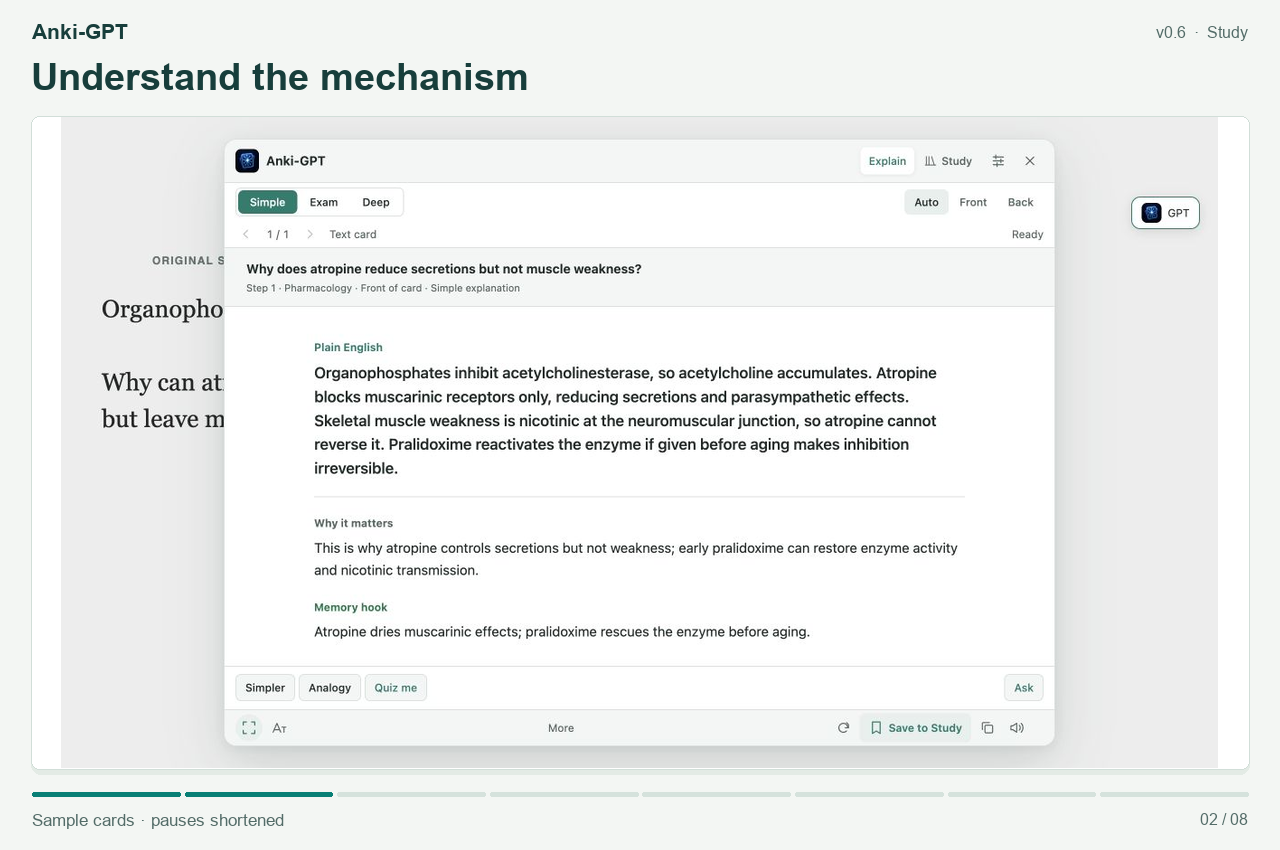
3. Ask the next question
Click Ask, type the part you want explained, and send your question. A focused question such as “Why does this affect one receptor but not the other?” gives the conversation a clear direction.
Use Simpler for plainer wording or Analogy for a concrete comparison. Quiz me turns the idea into a recall prompt. You can keep working through the card without copying it into another app.
Move or resize the panel if it covers something you need. Use Focus or the text-size control for easier reading.
4. Save it, then practice recalling it
- Click Save to Study on an explanation you want to keep.
- Open Study. Search for a saved concept, or choose Due or Needs work to find something to revisit.
- Choose Practice these. Keep the explanation hidden while you try to explain the idea in your own words.
- Reveal the explanation and rate your recall Know it or Again. Take another pass through missed concepts when you need it.
Study bookmarks and practice progress stay in your local Anki profile. Reopening a saved explanation does not use another hosted explanation.
Your normal Anki schedule stays unchanged. Study’s recall ratings set local reminders for saved explanations. They do not change your Anki card scheduling.
Need help with setup or access?
See Help and frequently asked questions for payment confirmation, updating, privacy, and desktop compatibility. For a bug or a question about a specific control, use the Anki-GPT support thread.