The short answer
Anki already handles the core of remembering: it asks you to recall each card and spaces those reviews out over time. AI is useful around that loop, not instead of it. It helps most with three jobs: explaining a card you don’t understand, fixing a card you keep failing, and drafting cards from material you’re studying.
It can’t recall for you, it doesn’t know what your course emphasizes, and it can state wrong things in a confident tone. Use it to make better cards and to understand them, and let your reviews do the rest.
Three jobs AI does well in Anki
These are the places where a language model adds something Anki doesn’t do on its own.
1. Explaining the card in front of you
A card shows you the answer, not the reason. When an answer makes no sense, or you got it right by luck, a short explanation of why it’s true gives it something to attach to. AI is good at restating an idea plainly, offering an analogy, or contrasting it with a look-alike. It’s most useful during review, on the card you just missed. More in how to explain Anki cards while you review.
2. Fixing cards you keep failing
Most cards that fail again and again have a problem with the card itself: a vague question, too much on one card, or two cards so alike that you swap their answers. AI can read a struggling card, suggest which problem it has, and draft a clearer version or a split. You still decide whether the rewrite is right. See why some cards keep failing and how to fix them.
3. Drafting cards from your material
Turning a page of notes, a slide or a missed practice question into cards is slow. AI can draft a handful of short, one-fact cards from what you paste, which you then edit, keep or drop. Deciding what deserves a card is still your job. See how to make Anki cards from notes, slides and screenshots.
What AI can’t do for you
- It can’t remember for you. Anki works by having you pull each answer from memory. An explanation can make a card make sense, but it doesn’t replace answering the card.
- It can be wrong. Language models can state a wrong fact, a wrong number or an invented detail in a confident tone. Check anything that goes onto a card against your notes, textbook or another trusted source.
- It doesn’t know your course. A model sees only what you give it. It can’t tell which details your teacher stressed or which ones you’ll need, so it can’t decide what’s worth learning.
- It can’t fix an overloaded schedule. If you’re adding more new cards than you can review, better cards won’t clear the backlog. That’s a question for your deck options and your daily routine.
- More cards isn’t better. Every card you add brings future reviews. Generating a hundred cards takes seconds; reviewing them takes months.
Three ways to use AI with Anki, compared
There are three common setups. None is right for everyone, and many people mix them.
Copy and paste into a chatbot
You copy a card or your notes into a general AI chat, ask your question, then copy anything useful back into Anki. It’s flexible, often free to start, and works on any device. The cost is friction: switching windows mid-review, pasting the card each time, adding images by hand, and retyping what you want to keep. The chat also can’t see your review history, so it doesn’t know which cards you struggle with.
An add-on that works inside your reviews
An add-on puts the AI next to the card you’re reviewing. It already has the card’s text and images, so asking “why?” is one click, and it can write a change back to your collection when you approve it. Some can also read Anki’s review history to find the cards you fail most. The trade-offs: you’re limited to what the add-on offers, add-ons usually run only in desktop Anki, and hosted ones usually charge after a free allowance.
AI deck generators
Generators take a document or a topic and produce a whole deck at once. They’re fast, and can give you a first pass over a large amount of material. But you didn’t write or choose the cards, so they may cover the wrong details, phrase things in a way that doesn’t match how you think, or include errors you won’t notice until review. A large import also brings a large review load.
| Question | Chatbot (copy and paste) | In-review add-on | AI deck generator |
|---|---|---|---|
| Sees the card you’re reviewing | Only what you paste in | Yes, its text and images | No, it works from a document or topic |
| Knows which cards you fail | No | Only if it reads your review history | No |
| Effort to ask about one card | Copy, switch windows, paste, ask | One click beside the card | Not built for single cards |
| Changes to your collection | None; you copy anything useful back | Only the changes you approve | Adds a batch of new cards |
| Main risk | The friction means you stop doing it | Limited to what it offers; usually desktop only | Many cards you didn’t choose, plus their reviews |
| Good for | Occasional deeper questions | Everyday reviews and fixing weak cards | A first pass over a large source |
Whichever you use, one rule holds: read what the AI wrote before it goes onto a card. A wrong card reviewed for months is worse than no card.
How to check AI output before it reaches your cards
- Compare it with your source. If it disagrees with your notes or textbook, trust the source and find out why.
- Check numbers, units, names and dates. Small errors in these are easy to miss and easy to memorize.
- Watch for added detail. A drafted card should only say what your material says. Drop anything you can’t verify.
- Keep one fact per card. Trim long answers before you add them.
- Read the front cold. If more than one answer could fit, make the question more specific.
Where Anki-GPT fits
Anki-GPT is an independent add-on for desktop Anki that does all three jobs inside the app, and changes your collection only when you click.
- ExplainClick Explain beside the card you’re reviewing and choose Simple, Exam or Deep. Follow up with Simpler, Analogy, Quiz me or Ask.
- Card RescueLists the cards you fail most from Anki’s own review history, read-only, diagnoses why one slips, and suggests a rewrite or a split.
- Make cards from anythingPaste notes, a missed question, slides or screenshots and get 1–5 cards to edit before adding.
- Add to cardPin an explanation into a field of the note, so it syncs to AnkiMobile and AnkiDroid.
- ProgressStreak, heatmap and retention from your review history, plus an exam planner. Uses no AI answers.
- You approve every changeNothing is written until you click Apply, Add or Pin, Edit → Undo reverses it, and your review schedule is never changed.
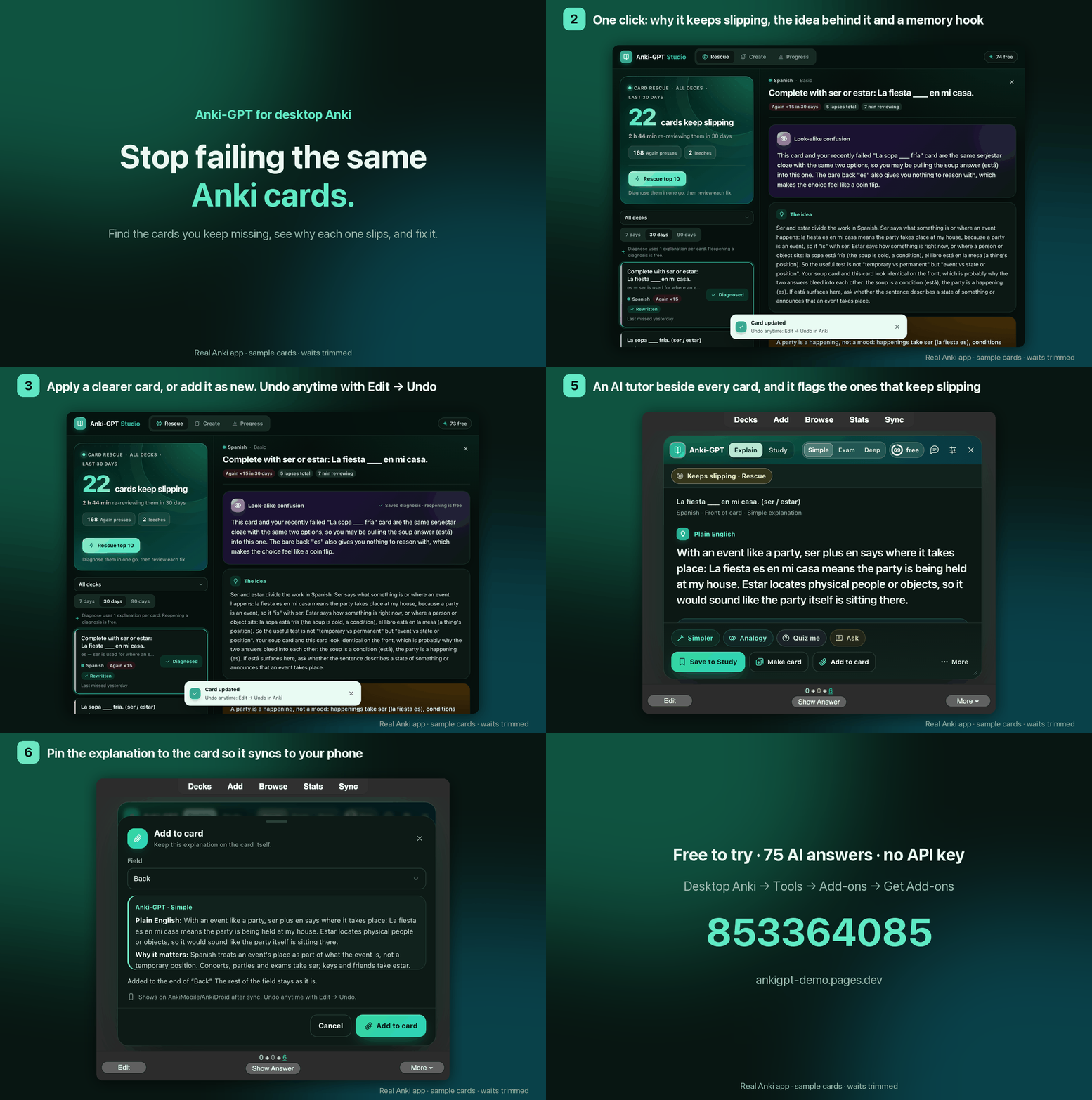
You start with 30 free AI answers, with no API key and no sign-up. After that you keep 5 free explanations a day, and Plus is $3 a month or $24 a year, and Pro, with more answers and Rescue Autopilot, is $8 a month or $59 a year. Install it in desktop Anki with Tools → Add-ons → Get Add-ons and the code 853364085. The guide walks through each feature.
What gets sent, and what stays on your computer
Nothing is sent until you ask for an AI answer, or, on Pro, until Rescue Autopilot runs. Then the request goes to the hosted service and needs an internet connection:
- Explain and follow-ups send the card content (text, fields and tags), attached images, your question, and relevant conversation and review context.
- Card Rescue sends the card’s text, fields and tags, its deck and note-type names, its review counts for the chosen window, and up to three other cards from the same deck that you also missed recently and that share a word with it, shortened.
- Rescue Autopilot (Pro; can be turned off in Studio) sends the same information as a Card Rescue diagnosis for up to 10 newly struggling cards about once a week, in the background, and uses your monthly allowance.
- Create sends the text and images you paste, plus the optional focus and the deck name.
Listing struggling cards, Progress, the exam planner, Share my week and Pin to card run on your computer and send nothing. Request context and responses may be cached by the hosted service for up to 30 days. Don’t submit patient identifiers, private client data, restricted exam material, or anything else you aren’t allowed to share. Full privacy details.
FAQ
Can AI make Anki cards for me?
Yes, it can draft them from notes, slides, screenshots or a practice question you missed. Treat drafts as a starting point: check each one against your source, keep one fact per card, and drop anything you wouldn’t have chosen to learn.
Is it safe to let AI edit my Anki cards?
It’s safest when nothing changes without your approval. In Anki-GPT, a card is edited or added only when you click Apply, Add or Pin, every change can be undone with Edit → Undo, and your review schedule and review history are never changed.
Does AI replace spaced repetition?
No. Spaced repetition decides when you see a card again. AI can help with what’s on the card and why it’s true, but the remembering still happens when you answer the card yourself.
Do I need an API key or a separate AI account?
Not for Anki-GPT. It includes 30 free AI answers with no API key and no sign-up. After that you keep 5 free explanations a day, and Plus is $3 a month or $24 a year, and Pro, with more answers and Rescue Autopilot, is $8 a month or $59 a year.
Does it work on AnkiMobile or AnkiDroid?
The add-on runs in desktop Anki only. Cards you add and explanations you pin with Add to card are ordinary note content, so after you sync they show on AnkiMobile and AnkiDroid wherever that field appears on your card template.
Can the AI be wrong?
Yes. Language models can state wrong facts confidently, so check anything important against a trusted source. Anki-GPT shows your original card beside every suggested rewrite so you can compare before you change anything.
Try AI inside your Anki reviews.
Free to try with 30 AI answers. No API key, no sign-up. For desktop Anki 2.1.65 or newer.
- In Anki, choose Tools → Add-ons → Get Add-ons.
- Paste 853364085, then restart Anki.
- Click Explain beside a card while you review.